Cruise Line Tycoon Roblox Cinematic Mode & Freecam
Capture stunning ship screenshots and recordings with Cruise Line Tycoon's built-in freecam system.
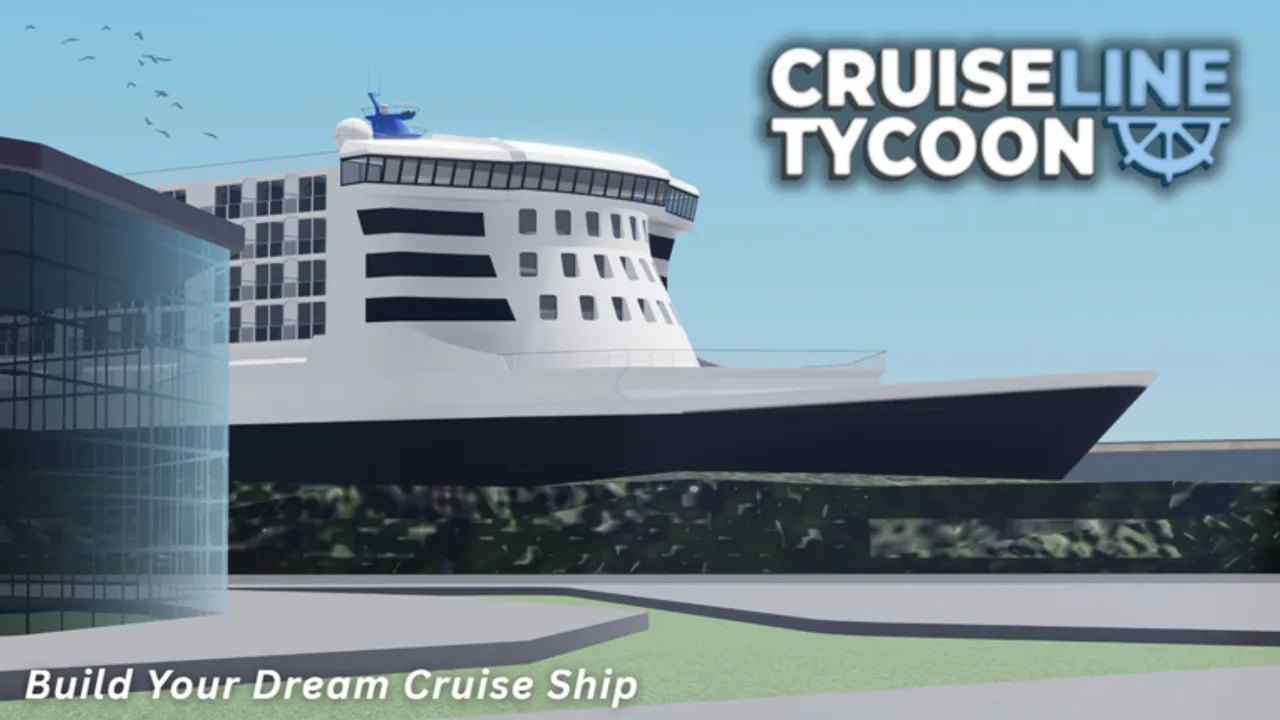
Cinematic Mode landed in V1.17 as a free camera system for capturing screenshots and recordings using Roblox Captures. It lets you move the camera freely around the map—ideal for cinematic ship shots, fleet overviews, and content creation without the constraints of player camera controls. Access it through Options → Freecam.
Opening Cinematic Mode
In the main game menu or while aboard your ship:
- Open Options.
- Select Freecam.
- The game camera detaches and you gain full 3D navigation control.
Exit by opening Options again and toggling Freecam off, or pressing Escape.
Camera Movement Controls
| Action | Input |
|---|---|
| Move forward/back | W / S |
| Strafe left/right | A / D |
| Ascend/descend | Space / Shift |
| Pan | Click + drag |
| Look around | Mouse movement |
Speed Control
Scroll wheel adjusts camera movement speed. Low speed suits close-up interior detail shots; high speed lets you survey the full map quickly. There is no hard speed cap—scroll until the desired pace is reached.
FOV (Field of View)
Alt + Scroll changes the field of view. Narrow FOV creates a telephoto compression effect—useful for exaggerating ship scale and emphasizing bow details. Wide FOV opens the scene for sweeping landscape shots that include sky and surrounding ocean.
Inertia Control
Ctrl + Scroll adjusts camera smoothing and movement responsiveness. Low inertia produces snappy, responsive motion. High inertia creates smooth, weighted camera movement that reads better in recorded video.
Axis Modes: Map vs. Ship
The left toggle switches how the camera behaves relative to the world:
Map Axis — Camera remains fixed in world space. As you move, the camera holds its position in the environment and does not follow the ship or player. Useful for photographing multiple ships in a port or capturing static scene compositions.
Ship Axis — Camera follows your ship as it moves. This mode keeps the vessel framed as it sails, perfect for cinematic approach shots and aerial follow sequences. Combine with high speed and wide FOV for drone-like footage.
Switch between modes mid-capture for variety in a single recording session.
Capture Controls
The interface includes two central buttons linked to Roblox’s built-in capture system:
Capture Button — Takes a screenshot. Images save to your Roblox capture gallery. Use this for wiki gallery shots, ship showcase images, and before/after build comparisons.
Record Button — Starts and stops video recording. Video captures include all camera movement and scene elements. Trim and edit in post-production for YouTube content or social media.
Environment Controls
The top interface bar exposes two selectors:
Time (left selector) — Choose the in-game time of day. Options typically include Dawn, Morning, Afternoon, Evening, and Night. Night shots showcase navigation lights, glowing windows, and illuminated decks. Time selector is especially effective for Imperial Class shots where interior lighting shows through hull windows.
Weather (right selector) — Cycle through weather states including Clear, Cloudy, Rain, and Thunderstorm. Stormy weather creates dramatic atmosphere for fleet showcases. Rain produces ambient water effects that add dynamism to otherwise static shots.
Practical Use Cases
Ship showcase images — Dock your Eclipse Class at Barcelona, set time to Afternoon, and use Ship Axis with low speed to orbit the hull.
Fleet comparison — Position camera at Qanaveral shipyard using Map Axis and capture multiple hulls side-by-side for progression comparison.
Waterslide documentation — Use narrow FOV with Ship Axis to film ride-through sequences on new Waterslides and Pools installations.
Before/after refits — Capture the same angle before and after major deck refits to document rating changes.
Tips for Better Captures
- Use a tripod — Anchor the camera using Map Axis at a fixed point for stable time-lapse sequences of ships entering and leaving port.
- Frame with negative space — Leave ocean or sky breathing room around the ship for cleaner composition.
- Match time to ship color — Darker hulls photograph better during golden hour; white superstructures pop against blue-sky backgrounds.
- Test FOV before recording — Dramatic wide-angle distortion can undermine otherwise good footage—check a preview frame first.
Cinematic Mode transforms your Cruise Line Tycoon sessions into content. Spend five minutes learning the controls before your next session and you will have gallery-ready images every time you undock.
Frequently Asked Questions
Quick answers for Cruise Line Tycoon captains.
How do I access Cinematic Mode in Cruise Line Tycoon?
Open Options in the main menu or while aboard your ship, then select Freecam. The camera detaches and you gain full 3D navigation control.
What is the difference between Map Axis and Ship Axis?
Map Axis keeps the camera fixed in world space—the ship moves through the frame. Ship Axis makes the camera follow your vessel as it sails.
How do I take a screenshot in Cinematic Mode?
Use the Capture Button in the Cinematic Mode interface. Images save to your Roblox capture gallery.
Can I change the time of day in Cinematic Mode?
Yes. The left environment selector on the top bar controls in-game time—Dawn, Morning, Afternoon, Evening, and Night are available.